Why does your laptop screen freeze randomly? What should you do if your laptop screen is frozen, and what is the main reason?
Computers are very powerful in today’s world. However, sometimes problems occur that cause difficulties for users. Computer freezing can happen for many reasons, such as overheating, motherboard issues, viruses, and other hardware or software problems.
Your laptop screen is frozen is one of the most frustrating problems for any user. Your mouse stops moving, the keyboard does not respond, and the screen stays stuck on one image.
This issue can happen suddenly and may cause panic, especially if you are working on something important.
If you are facing computer freezing problems, don’t worry, because I’m here to help you. What steps can be taken to prevent freezing problems in the future?
Today, I am going to share what to do if your computer or laptop freezes randomly. And what are the common reasons for computer and laptop freezing in this article? Hidden
If your computer freezes and nothing works—even when you press Ctrl + Alt + Delete and Task Manager does not open—then your system is completely frozen. What should you do in this situation?
In one word, when your laptop is not working, and lines appear on the screen while it is stuck in the same place, it is considered that your laptop screen is frozen.
If the laptop is still powered on but the operating system is unable to process tasks properly, it can also be considered as the laptop screen is frozen.
Laptop screen is frozen? Here are the common reasons
Before we jump into solutions, it’s helpful to know why laptops freeze. Understanding the causes can help prevent the problem in the future.
Here, I’m going to share the main reasons why computers and laptops freeze. I hope this article will help you identify the leading causes of your PC freezing.
Many potential problems can cause your laptop to freeze. Given below are the main and common reasons for a laptop screen is frozen.
Overheating
Insufficient memory
Software Errors
Computer Viruses
Motherboard
Not installing the latest Windows updates
Outdated drivers or software
1. Overheating
Overheating can cause computer freezes. The CPU is especially important because it is critical to the computer’s functionality and is sensitive to heat.
If overheating is causing your laptop to freeze, it could be due to a malfunctioning fan. If your fan isn’t working, it needs to be repaired.
When your laptop starts to overheat, there is a high chance it may freeze. Therefore, avoid using your computer if it begins to get too hot.
You can help prevent overheating by placing your laptop on a cooling pad.
Insufficient memory is the most common reason why a laptop screen is frozen. Laptop RAM is like the brain of your laptop; if it doesn’t work properly, the system will struggle.
Running many memory-intensive applications at the same time can cause your laptop to freeze.
Having too many background processes, such as multiple antivirus programs or numerous browser windows open, can also lead to freezing.
If your laptop runs out of RAM, you will encounter problems. Some common issues caused by insufficient RAM are listed below.
Third-party software is one of the most common causes of your laptop screen is frozen. Some applications may attempt to access system resources in a way that Windows cannot handle properly.
When the operating system cannot process these actions, it may hang or freeze.
The best way to troubleshoot this issue is to update all third-party software installed on your computer.
Ensure that your RAM has been tested and is functioning properly, and make sure at least 10% of your disk space is free. This free space is necessary for Windows to use as virtual memory.
If your PC continues to freeze even after troubleshooting, you should have it repaired by a qualified computer technician.
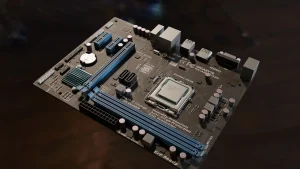
The motherboard is one of the most important parts of a laptop. Motherboard infections are a common reason why a laptop screen is frozen.
It connects all the main components like the CPU, RAM, hard drive, and graphics chip. When the motherboard has a problem, your laptop may start freezing without warning.
A damaged or faulty motherboard can interrupt communication between components. This can cause the system to hang, slow down, or freeze completely.
If your laptop freezes randomly, restarts on its own, or fails to respond to keyboard and mouse input. These signs often point to a deeper hardware issue rather than software problems.
When you find out that the motherboard is the reason behind your laptop freezing, it usually needs to be replaced. However, replacing a motherboard is quite expensive.
In most cases, it is better to replace the laptop instead of repairing it, especially if the laptop is old.
One common reason a laptop screen may freeze is outdated drivers or an old operating system.
If you are a Windows user and are using an old version of Windows, it may cause your system to freeze. Always update to the latest version of the Windows operating system to fix this problem.
An outdated operating system can cause compatibility issues with newer software or hardware. This can make your laptop unresponsive at times, especially when running multiple applications.
Regular updates are an easy way to keep your laptop running smoothly and avoid unnecessary frustration.
Before doing anything, first wait for a few minutes. Sometimes this happens because of low RAM or too many apps loading at the same time.
If your laptop has less than 4GB of RAM, try to open fewer applications at the same time. First, try closing unresponsive programs. If the issue is caused by a single program, closing it will temporarily resolve the problem.
If you have tried all the methods above and are still facing freezing issues, here are some initial solutions for you.
1. Wait a Few Seconds
Sometimes a laptop screen is frozen because it is temporarily busy processing tasks. This can happen when multiple applications are running at the same time or when the system is loading data.
In such cases, waiting for 30 seconds to a minute may allow the laptop to respond again without needing any action.
2. Close Unresponsive Programs
When your laptop screen freezes, one or more programs may have stopped responding. If a specific program is causing the freeze, try closing it.
Press Ctrl + Alt + Delete and open Task Manager to check which program is unresponsive.
Windows: Press Ctrl + Alt + Delete → Select Task Manager → Click the frozen program → Click End Task.
Mac: Press Command + Option + Escape → Select the frozen app → Click Force Quit.
Select the program and click End Task to close it. This can quickly free up system resources and help your laptop start working normally again.
You can press this key combination two times and repeat the steps a few times if needed. If the three keys (Ctrl + Alt + Delete) are not working and your computer is not responding, try repeating this step multiple times, about three to four times.
3. Restart Your Laptop
If your laptop screen is frozen and closing programs doesn’t help, try restarting it. Hold down the power button for a few seconds until the laptop turns off, then turn it back on.
Restarting can clear temporary issues, free up system resources, and often resolve freezing problems quickly.
If restarting does not work, you can try an easy method: disconnect the laptop from the AC power and remove the battery, if possible.
4. Check for Overheating
Overheating is a common reason why your laptop screen is frozen. If your laptop feels hot or the fan is running loudly, give it some time to cool down. Avoid using it on soft surfaces like beds or sofas.
If your laptop is overheating, turn it off and let it cool down completely before turning it back on.
Using a cooling pad or keeping vents clear can help prevent overheating and improve performance.
5. Disconnect External Devices
Sometimes, external devices like USB drives, printers, headphones, or external hard drives can cause your laptop to freeze.
Try disconnecting all external devices and see if the laptop starts responding. Once it’s working properly, reconnect the devices one by one to identify the one causing the problem.
6. Update Drivers and Operating System
Outdated drivers or an old operating system can cause your laptop screen is frozen. Make sure to regularly check for updates for Windows (or your OS) and all device drivers, like graphics, sound, and network drivers.
Updating them can improve performance, fix bugs, and prevent freezing issues.
Windows: Go to Settings → Update & Security → Windows Update → Check for updates.
Mac: Go to System Preferences → Software Update.
7. Scan for Viruses
Viruses and malware can cause your laptop to freeze or slow down. Use a trusted antivirus program to scan your system regularly. If any threats are found, follow the antivirus instructions to remove them.
Keeping your laptop virus-free helps improve performance and prevents freezing or other unexpected issues.
Have you tried all the above-mentioned initial solutions for your frozen laptop screen, but still haven’t fixed the issue? But your laptop screen is still frozen; it might be time to try some advanced solutions.
Sometimes, the issue is caused by deeper software problems or hardware faults that the basic steps cannot fix.
In such cases, booting your laptop in Safe Mode, checking for corrupted system files, or consulting a professional technician can help identify and resolve the problem effectively.
1. Boot in Safe Mode
If your laptop keeps freezing, try starting it in Safe Mode. Safe Mode loads only the essential programs and drivers, which can help you identify if a third-party program or driver is causing the problem.
From Safe Mode, you can uninstall problematic software, update drivers, or run virus scans safely.
For Windows 10/11:
Press and hold the Shift key, then click Restart from the Start menu.
Your laptop will restart to the Advanced Startup menu.
Go to Troubleshoot → Advanced options → Startup Settings → Restart.
After restarting, press 4 to enter Safe Mode or 5 for Safe Mode with Networking.
For older Windows versions (7/8):
Restart your laptop and press F8 repeatedly before the Windows logo appears.
Choose Safe Mode from the menu.
Mac: Restart and hold Shift → Release when login screen appears → Safe Mode is active.
2. Check Hard Drive Health
A failing or damaged hard drive can cause your laptop to freeze frequently. You can check its health using built-in tools like CHKDSK on Windows or third-party software.
Look for errors or bad sectors. If problems are found, consider repairing the drive or backing up your data to prevent data loss.
Windows: Open Command Prompt → Type chkdsk /f → Press Enter.
Mac: Open Disk Utility → Select your disk → Click First Aid.
3. Reinstall the Operating System
If your laptop keeps freezing and other solutions don’t work, reinstalling the operating system can help. This removes corrupted files, problematic software, and system errors that may be causing freezes.
Make sure to back up your important data before starting, as reinstalling will erase all files on your laptop.
If you have tried all the above methods and your PC is still freezing, you should have it repaired by a professional computer technician.
Is your laptop screen frozen? I know it’s very frustrating, but in most cases, it can be fixed quickly. Start with simple steps like waiting, closing programs, or restarting, and then move to advanced solutions like safe mode or hardware checks if needed.
Remember, prevention is better than cure. Keep your software updated, protect your laptop from overheating, and scan for viruses regularly to avoid freezes in the future.
By following this guide, you can handle if your laptop screen is frozen calmly and efficiently, saving time, stress, and money.



 BUY NOW
 BUY NOW
 BUY NOW