Hi guys, welcome to MineTechTips. Today, I’m going to tell you how to share phone screen on laptops / PCs.
If you are here reading this article, it clearly means you are searching for the best and simplest guidance on how to display your phone screen on your PC or laptop.
And trust me, you are in the right place. Screen mirroring is useful for various purposes, such as watching videos on a larger display, playing mobile games using your laptop or desktop keyboard and mouse, managing work tasks, attending online classes, giving presentations, and much more.
In this blog post, I will explain step-by-step how to display your Android or iPhone screen on a Windows PC or laptop. I’ll also include free methods, wireless methods, USB methods, and some of the best apps that make the process smooth.
What does it mean by Share Phone Screen on Laptop or Screen Mirroring?
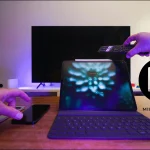
share phone screen on laptop means showing your phone’s display on a larger screen, such as a computer or laptop. Whatever you do on your phone, it will display on your laptop, so you can open apps, watch videos, and play games. It will appear on the PC screen in real time.
It is also known as:
Phone to PC mirroring
Casting phone screen
Screen casting
Displaying the mobile screen on the laptop
Sharing phone display
How to Display / Share Phone Screen on Laptop / PC (Step-by-Step Guide)
You can display your phone screen in many ways here. I’m going to cover some of them, like
You can display your phone screen on a PC or laptop using:
Wireless method (Wi-Fi)
USB cable method
Screen mirroring apps
Built-in Windows features
Web-based mirroring tools
Let’s cover them one by one.
1. Using Windows Built-in Feature (Wireless Display)
Most Windows 10 and Windows 11 PCs support a default screen mirroring feature called “Wireless Display”.
Follow these steps:
Step 1: Enable Wireless Display on Windows
How to enable wireless? Just follow the steps given below 1 by 1
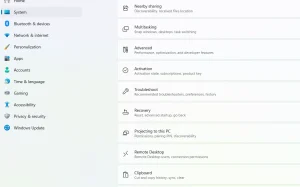
Go to Settings > System > scroll down there you will see
Projecting to this PC
Select And Optional Features
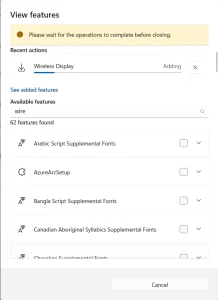
View or Edit Optional Features
Press on View Optional Features
It will ask for Permission, just Press “YES.”
Search for Wireless Display
If it’s not, Press on Add New Feature
Search for Wireless Display, and it will start downloading automatically
Step 2: Open the “Connect” App
To open the app, you can directly go through the shortcut key < Press Windows Key + K.
If you want to go through the settings
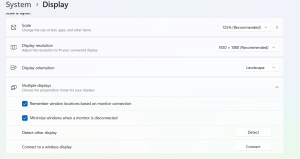
Setting > System > Display > Multiple Display > Connect To wireless Display
Search Connect in the Start menu.
Step 3: Enable Cast Option on Your Android Phone
Open your phone’s Quick Settings. ( Swipe down the notification bar )
Look for Cast, Screen Cast, Smart View, or Wireless Display.
Turn it on.
Step 4: Connect Your Phone to Your Laptop
Your laptop name will appear on your phone.
Tap on the laptop name
Accept the connection request on the laptop.
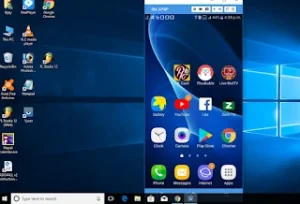
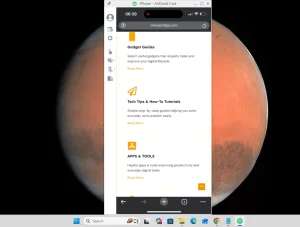
That’s it! Your Android phone screen will now appear on your laptop.
2. Mirror Android Share Phone Screen on Laptop by Using Apps
If the above-mentioned method’s built-in feature doesn’t work on your laptop or PC, then you can also share phone screen on laptop with third-party apps. Here are two popular options:
Step 1: Using “Vysor
It is a very easy way to display your phone screen on PC just go to your mobile settings and scroll down, you will see the developer option. If you don’t know how to turn on developer options, have can read Developer Options Android Hidden Features For Advanced Users
Then you will see the developer options and tap on the developer option. Again, scroll down, and you will see USB DEBUGGING and tick on the USB DEBUGGING.
Now you can use USB debugging to display your phone screen on your pc. You need to have the Google Chrome browser to use the Vysor app and do screen-mirroring.
Here is the step-by-step guide to cast the phone screen to a Laptop/PC
Install Google Chrome on the PC/Laptop running Windows or Mac OS, or Linux.
Install the “Vysor” app from the Google Chrome Webstore or visit the official site to get the Vysor Chrome app.
Connect your Android phone to the PC using a USB cable or WIFI. After connecting the USB, the Vysor Chrome app automatically shows a list of Android devices connected.
Now, click the view button and control the Android phone from a Windows PC without rooting the device.
Step 2: Using “Scrcpy” (Free & Fast)
By using the Vysor app, you can mirror your screen with USB and WIFI, but in Scrcpy, you need to connect with a cable, and it’s a very lightweight tool that lets you mirror your Android phone.
Connect your phone to your laptop with a USB cable.
Open Scrcpy.
Now, your phone screen will instantly appear on your laptop with very little delay. Now you can share phone screen on laptop.
3. Share iPhone Screen on MacBook (Built-In AirPlay)
Step 1: Connect Both Devices to the Same Wi-Fi (AirPlay works only when both the iPhone and MacBook are on the same network.)
Step 2: Open Control Center on iPhone (Swipe down from the top-right corner.)
Step 3: Tap on “Screen Mirroring” (You will see your MacBook name appear.)
Step 4: Select Your MacBook (Your iPhone screen will now appear on the Mac instantly.)
How to Share iPhone Screen on Windows Laptop?
You know all the ways to share phone screen on laptop, but how will you share your iPhone screen on Windows? Cause Windows doesn’t have built-in AirPlay.
No worries, I’m here to help you ( smile )
Here are the best options:
Step 1. Using “AirDroid Cast”
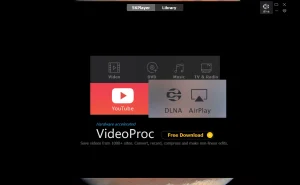
AirDroid Cast works for Android, iPhone, Windows, and Mac.
On your iPhone, open Control Center ➜ Tap Screen Mirroring. (Swipe down the notification bar from the right side)
Choose your Windows laptop from the list.
Conclusion
I’ve explained all the methods in a simple and step-by-step manner. I hope this article will be very helpful to you. Share phone screen on laptop is easier than ever.
Whether you use Android or iPhone, Windows or Mac, you have many options. In this beginner-friendly guide.
These are the steps you can follow to share your phone screen on laptop and PC:
Android to Windows (Wi-Fi + apps )
iPhone to Mac (AirPlay)
iPhone to Windows (AirPlay apps)
Wired sharing for stable performance
Choose the method that matches your device, and you’ll be able to share phone screen on laptop in seconds.