Today, I would like to explain how to control PC from phone. This method is one of the easiest ways to do so.
Google’s free Chrome Remote Desktop service makes it simple to access and control a computer from an Android device. It works across all major platforms, including Windows, macOS, Linux, and Chromebooks, allowing you to access the contents of your remote system from anywhere.
In today’s world, almost anything is possible, including controlling your PC from your phone. If you are somewhere outside and need to access your laptop or PC due to an emergency, you can do it through your phone.
You can easily control your PC from your mobile phone using simple apps. This article will help you do so. In this article, I will share the entire process step by step to make it as simple and easy as possible for you.
Before we begin with the steps, first thing you need to understand what “controlling a PC from a phone” actually means.
Control your PC from phone means you can operate your computer using your mobile device with full access rights. You can open files, run software, and access your entire computer even when you are not at home.
You can also help your friends or family fix PC problems remotely. By doing all of this, you can save time for yourself and your family as well.
Before you begin, make sure you have a working Windows, macOS, or Linux PC, an Android or iPhone mobile device, and a Wi-Fi connection on both devices.
Using apps like AnyDesk, TeamViewer, or Unified Remote, you can easily control PC from phone without complicated setups. These apps are user-friendly, secure, and allow you to manage files, run applications, and even control media playback remotely.
Whether you want to work from another room, assist someone with PC issues, or access important files on the go, learning how to control PC from phone makes your life easier and more efficient.
Now you can follow me step by step to do it.
All the steps to remotely control a PC are given below:
1. Control PC From Phone Using Chrome Remote Desktop
The first method to control your PC from your phone is Chrome Remote Desktop. It is one of the best and easiest methods to use. It is also one of my favorites because it is free to use, easy to set up, safe and secure, and works over the internet.
Step 1: Install Chrome Browser
To use this method, you need the Chrome browser. If you don’t have it installed, download and install it first.
Step 2: Prepare Chrome Remote Desktop for a remote connection
Once the application is open and your connection type is selected, you are almost ready for your remote access session.
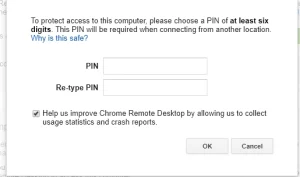
If you want to share your system for someone else’s remote support, a 12-digit code will appear on the screen. If you choose to configure your computer for remote access, you will have the option to create a custom PIN.
Step 3: Install the App on an Android Phone or iPhone
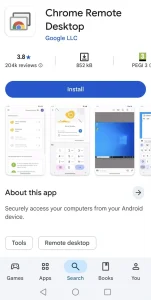
Open the Google Play Store to download Chrome Remote Desktop. If you are an iPhone user, you need to visit the official Google Chrome Remote Desktop page to set it up.
Step 4: Connect Your Phone to PC
Open the app on your mobile phone, but make sure you sign in with the same Gmail account that you use on your PC or laptop.
From there, you will see your PC’s name on your phone. Just select it and enter the PIN you created earlier.
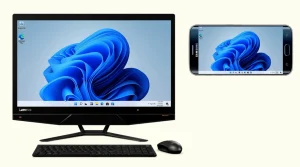
Now you can control your PC from your phone! You can enjoy a full PC screen, access touch controls, use keyboard support, work from anywhere, and much more. Your phone essentially becomes your PC.
2. Control PC From Phone Using TeamViewer
Here is one of the best of the best second options for you. Do you know why I mentioned “the best of the best”?
Because by using TeamViewer, you don’t need to be connected to the same Wi‑Fi. You can access it from another network, another place—anywhere, wherever you are.
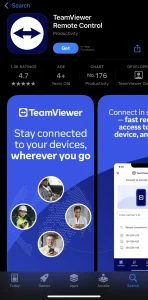
TeamViewer is one of the most popular remote desktop apps that lets you access your PC or laptop using your phone or another device. You can manage files, run applications, provide tech support, or collaborate with others in real time.
It works across Windows, Mac, Linux, Android, and iOS, and is secure and easy to set up. Whether you’re working from home, helping a friend, or managing multiple computers, TeamViewer makes remote access simple, fast, and reliable.
After downloading, install it and open the application
Now you will see an ID and a password.
Step 2: Install TeamViewer on the Phone
You can also install the TeamViewer app from both the Google Play Store and the Apple App Store. Just search for “TeamViewer” in the search bar and download it.
Step 3: Connect your PC to your phone using TeamViewer
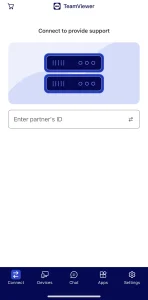
Open the TeamViewer app on your phone. You will see an option to enter the ID and password. Enter the ID and password shown on your PC’s TeamViewer app, then click on “Connect.”
Now you can control PC from phone using TeamViewer. Through this app, you can share files remotely, control your PC’s mouse and keyboard, and even use the chat option. Download it, explore more features, and especially enjoy remote file sharing! 😊
4. Control PC From Phone Using AnyDesk
YOu can control PC from phone by using AnyDesk, that lets you access your computer from anywhere. It works very fast, so you can use your files and programs without delay.
AnyDesk is a powerful remote desktop app that lets you control your PC or laptop from your phone or another device. You can work on files, run programs, and even troubleshoot problems without being physically present.
It’s fast, secure, and works across Windows, Mac, Linux, Android, and iOS. Whether you’re helping a friend, working from home, or accessing your office computer on the go, AnyDesk makes Control PC from phone easy and reliable.
Stay connected to your PC anytime, anywhere!
The app is small and light, so it doesn’t take up much space on your device, and you can even use it on a low-speed internet connection.
You can use it to help someone remotely, control your computer from another place, or transfer files easily.
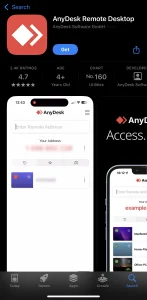
The AnyDesk app is available on both the Google Play Store and the Apple App Store, so you can easily download it from there.
Step 3: Enter PC address
Open the AnyDesk app on your PC. Below “This Desk,” you will see your PC address. Note this address and enter it in the AnyDesk app on your phone.
Now you can control your PC from your phone, just enjoy it and explore all its features.
5. Control PC From Phone Using Unified Remote
This is one of the best options for home use to control pc from phone. You don’t need an internet connection, but both devices must be connected to the same network, such as the same Wi-Fi.
You can control media playback, browse files, open programs, and even use your phone as a mouse or keyboard. It works over Wi-Fi or Bluetooth, making it very convenient for presentations, watching movies, or managing your PC from anywhere in your home.
The app is easy to set up and works with both Windows and Mac. Unified Remote makes PC control simple and fun!
Here are the steps to use Unified Remote to control your computer without an internet connection.
Step 2: Install the App on Your Phone to Control Your Computer with Phone
Install Unified Remote from the Play Store or Apple Store
Open the app
Step 3: Connect Devices to Control Computer With Phone
Connect PC and phone to the same Wi-Fi
App will detect the PC automatically
Now you can control PC from phone like mouse, keyboard, and media. Just enjoy it and explore all its features.
Conclusion
Learning how to control PC from phone is very helpful in today’s time. With simple apps like Chrome Remote Desktop, Unified Remote, and TeamViewer, anyone can do it easily.
You don’t need technical skills. Just follow the steps, install the apps, and enjoy remote access to your computer from your phone.
These apps let you use your phone as a mouse, keyboard, or remote control, access files, run programs, and even provide remote support. You don’t need to be physically near your computer, making it perfect for work, presentations, or entertainment.
Most of these apps are easy to set up, secure, and work across different devices. With just a phone and internet connection, you can manage your PC anytime, anywhere, making life more convenient and productive.